Quick Start: from field book to volume abstract in 10 minutes
What you get: a road project's cross sections checked, printed to PDF, and its earthwork in a volume abstract you can open in Excel. You use a finished sample, so nothing has to be typed in.
You need: CivilSurvey Expert installed and activated. About 10 minutes.
1. Open the sample
- Start CivilSurvey Expert. The Start page opens.
- Under Open a sample project, click Two-Lane Highway.
Once you have projects of your own, the samples are under the Sample projects button at the top right of the Start page.
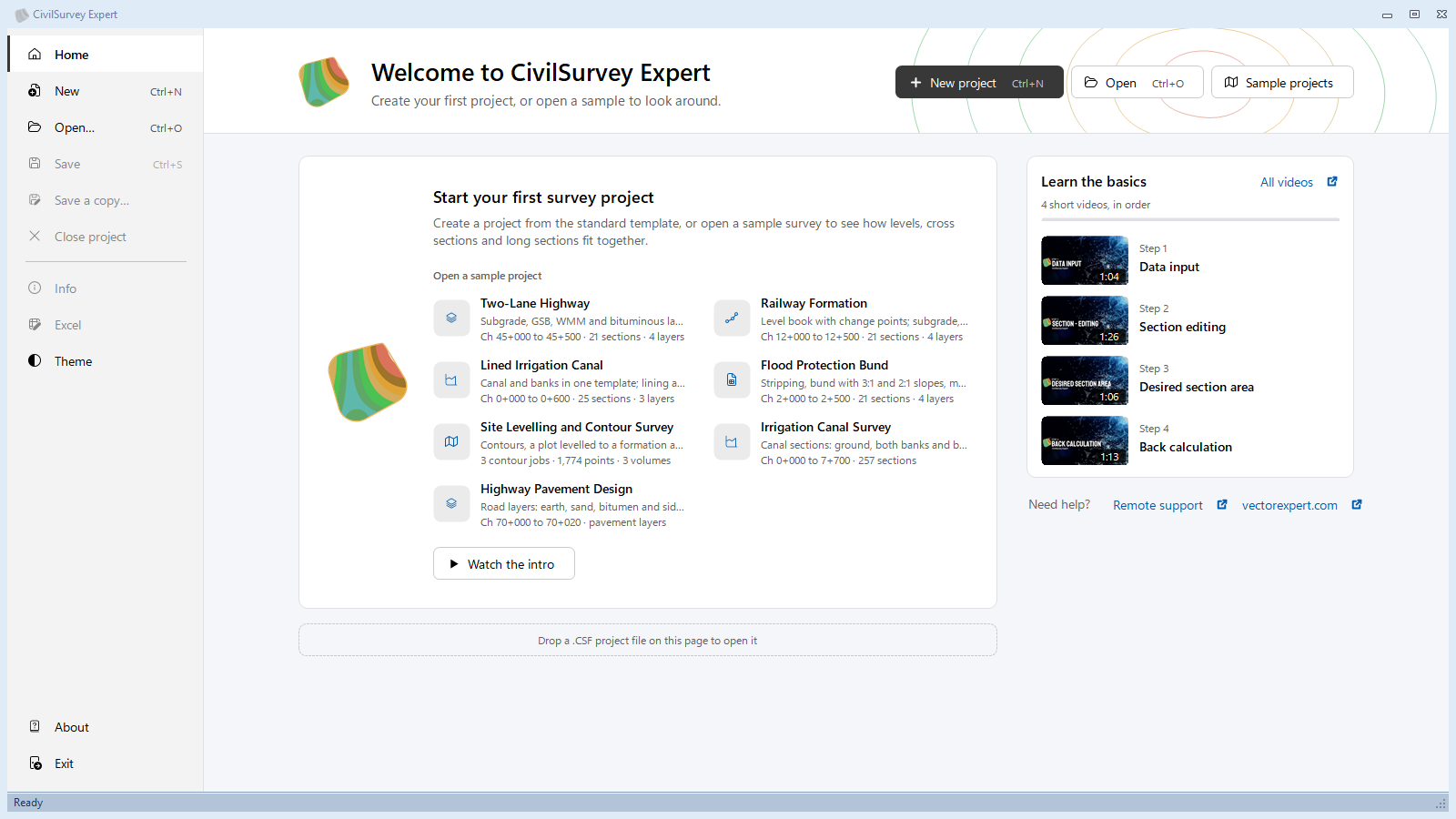
The program makes your own copy in Documents › CivilSurvey Expert › Samples and opens it. Change anything you like: the sample the program came with stays as it was.
The Two-Lane Highway is a 500 m stretch, Ch 45+000 to 45+500, with a cross section every 25 m (21 sections) and four pavement layers: subgrade, GSB, WMM and bituminous.
2. Look at the input
The Input screen opens. Each route is a sheet of the Routes workbook; pick one by its tab at the foot.
- NSL is the field book: the levelling readings (B.S., I.S., F.S.) at each chainage and offset, worked out to R.L.s from the bench mark in row 2 (R.L. 200.000). The Field Book panel on the left shows the bench mark and the commands for the readings.
- Subgrade, GSB, WMM and Bituminous are design routes: each lays a template along the chainages of the NSL field book, at its own level.
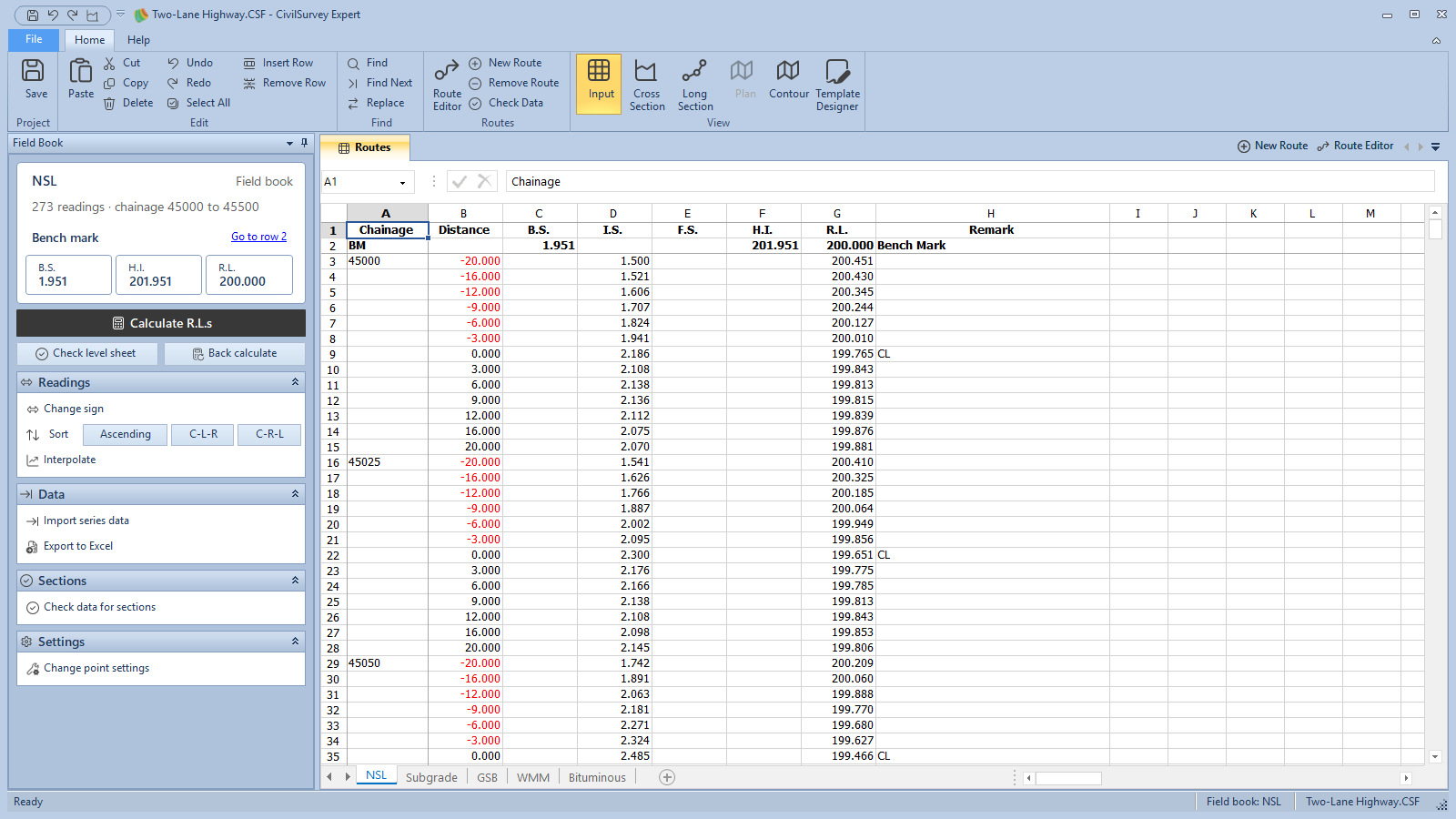
Tip: before drawing sections from your own data, click Home › Routes › Check Data. It finds a point without a level, a design row without a template or a chainage without ground, and takes you to its row. For this sample it says The route data is ready for sections.
3. Open the cross sections
- Click Home › View › Cross Section (or press F6).
- The program asks how to open them. Click Open saved sections: they open as they were saved, with their edits and reviews.
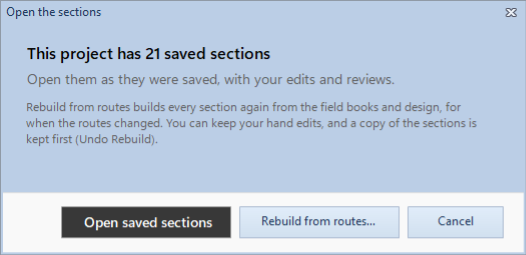
Rebuild from routes is for when you have changed the field book or a design: it builds every section again, and keeps a copy of them first (Undo Rebuild).
The first section is drawn: the ground (NSL) and the four layers over it, with their cut and fill. A Section tab comes up on the ribbon with everything for this screen.
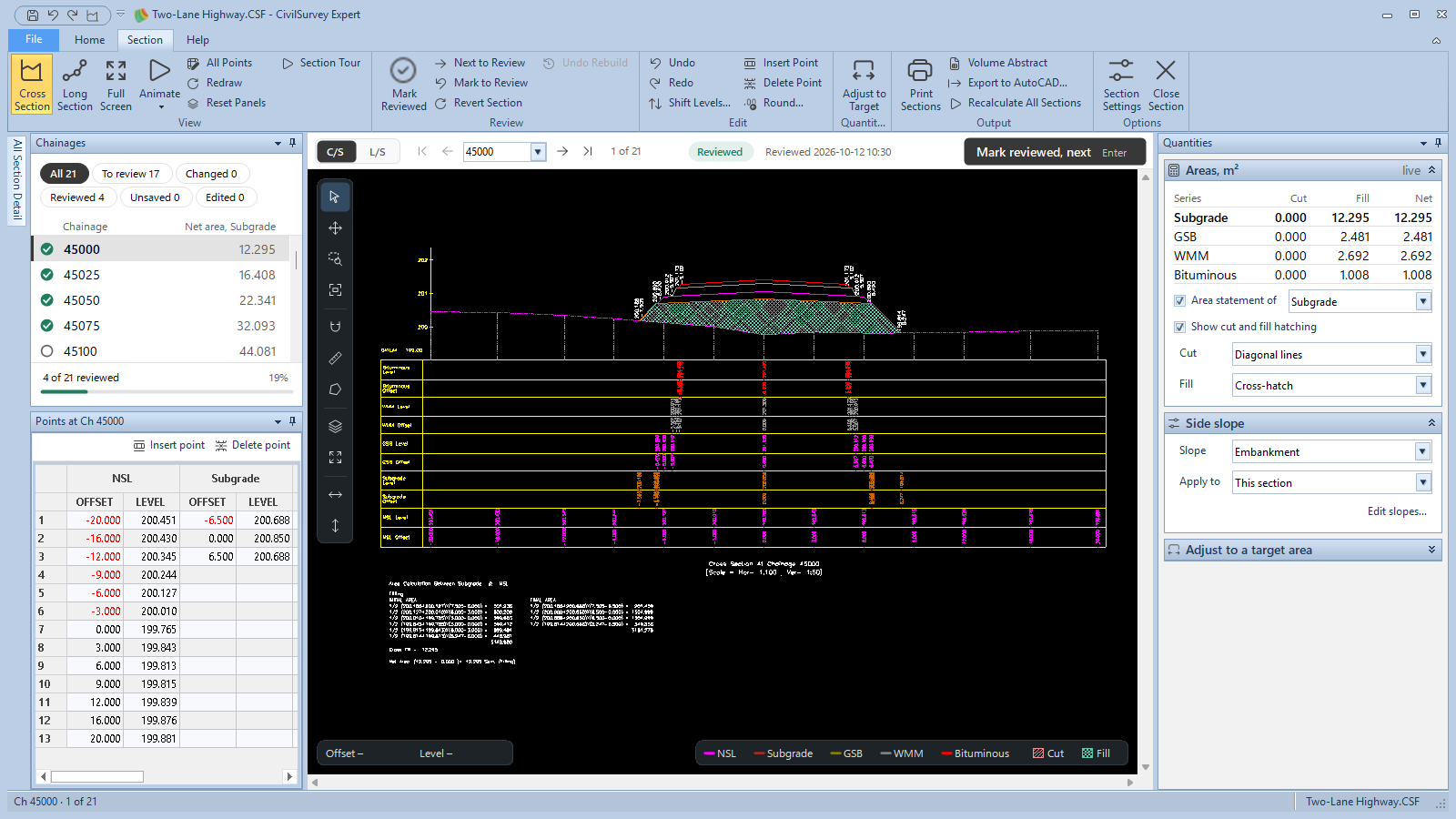
Where things are on this screen:
- The bar over the drawing moves between chainages: first, previous, the chainage box, next, last, and where you are ("1 of 21"). At its right, Mark reviewed, next (or Enter).
- Chainages (top left) lists every section with its review: a green tick is reviewed, a ring is still to review. The buttons above the list show only some of them: To review, Changed, Reviewed, Unsaved, Edited.
- Points (bottom left) holds the section's offsets and levels for each series. Change a value and the drawing follows at once.
- Quantities (right) shows this section's cut, fill and net area for each layer, and how the side slopes are made.
The first time you open this screen a one-minute tour shows these parts. Replay it from Section › View › Section Tour.
4. Review a few sections
The sample comes with the first four sections reviewed.
- Look at the section. If it is right, click Mark reviewed, next (or press Enter in the drawing, or Section › Review › Mark Reviewed). The next section still to review opens: from 45000 it goes to 45100, since 45025 to 45075 are already reviewed.
- Do this for two or three sections and watch "4 of 21 reviewed" under the list go up.
- Try an edit: drag a ground point in the drawing up or down. The areas change as you drag. Undo (Ctrl+Z) puts it back.
To see the whole route along its length, press F7 for the Long Section; F6 brings you back.
5. Print the sections to PDF
- Click Section › Output › Print Sections. The wizard has four steps; Next goes through them and Generate can be clicked from any of them.
- Chainages: which sections. The reviewed ones are ticked to start; under Quick select, click All to print all 21.
- What to print: what goes on each sheet: the sections, their area details, or both.
- Paper and layout: under Print type, choose PDF file. The PDF goes in the project's folder, named {project} sections {first} to {last} (here Two-Lane Highway sections 45000 to 45500.pdf). The scale and margins are below.
- Title block: the project's name, drawn by, checked and sheet boxes on each sheet.
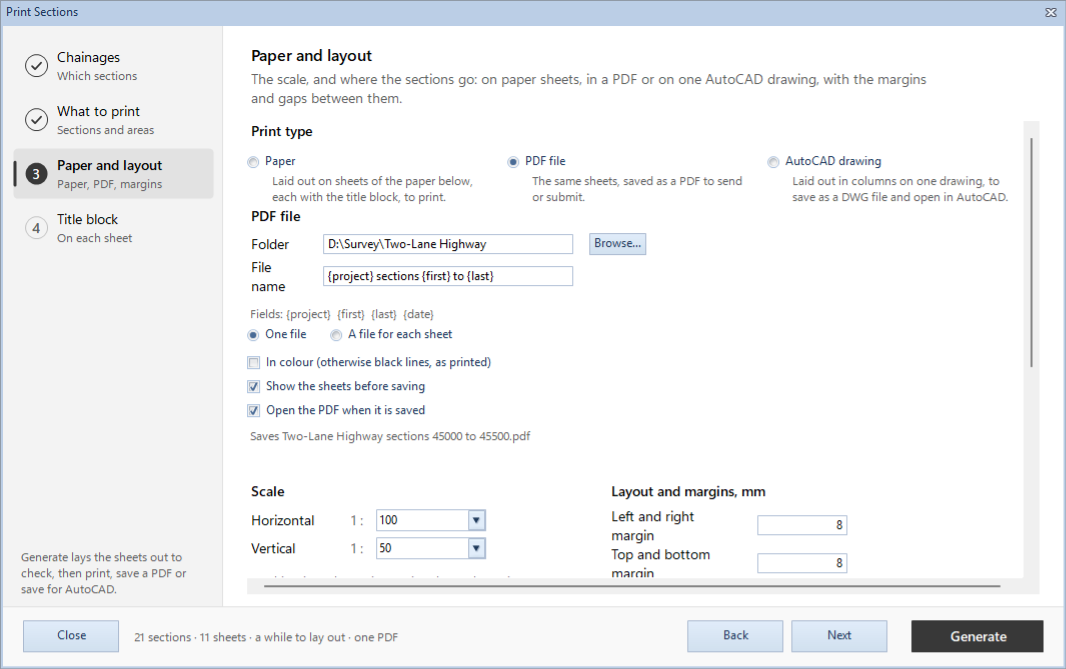
- Click Generate. The sheets are laid out and shown (21 sections on 11 sheets).
- Click Save PDF on the viewer's toolbar. The PDF is saved and opens.
To skip the viewer next time, untick Show the sheets before saving: Generate then saves the PDF straight away.
6. Get the volume abstract
- Click Section › Output › Volume Abstract. The abstract opens, with an Abstract tab on the ribbon.
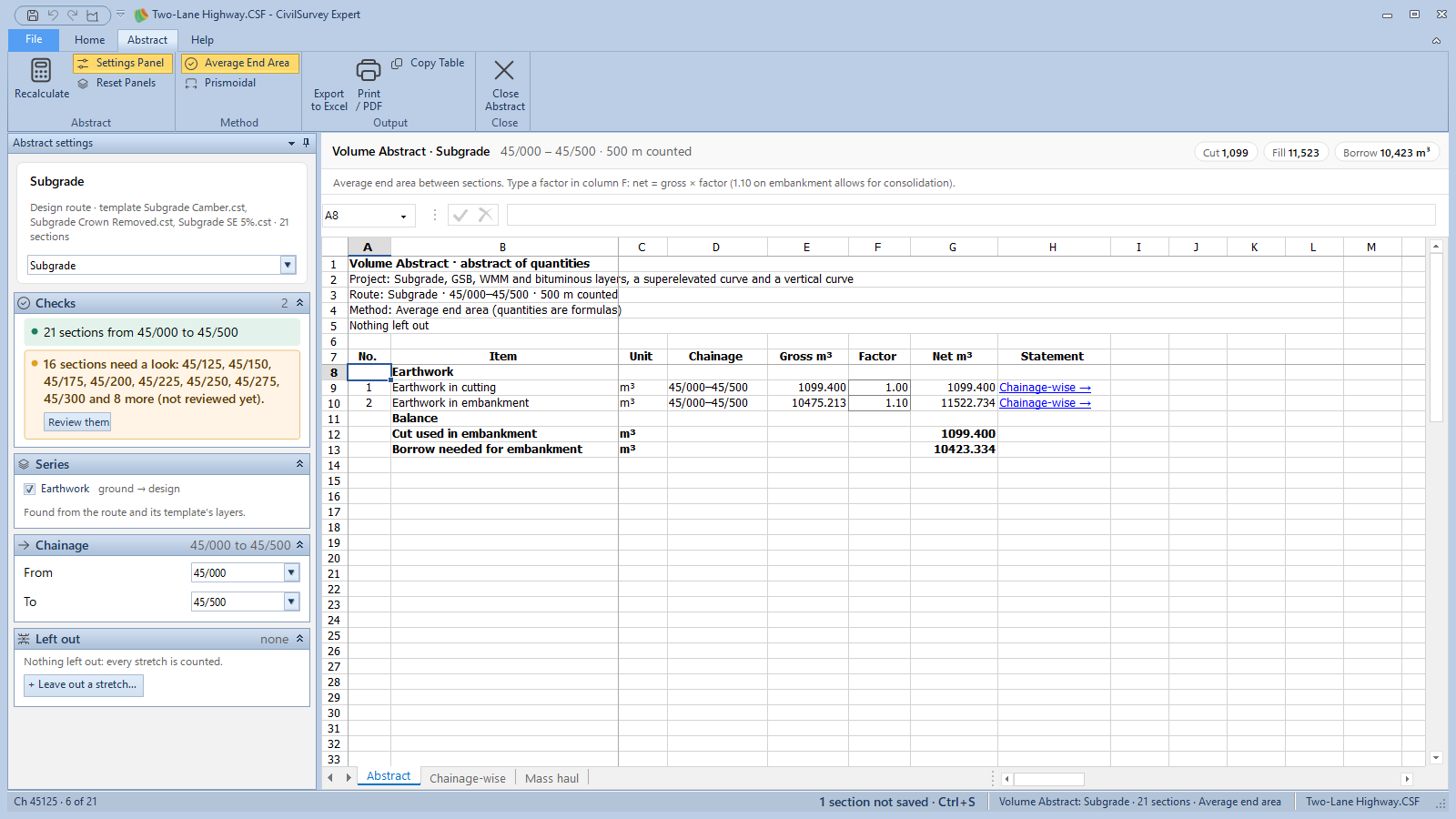
It is worked out for one design route at a time: Subgrade here. Pick another in the box at the top of the Abstract settings panel. The totals are at the top right: cut, fill and the borrow needed.
The abstract is a workbook of three sheets: - Abstract: earthwork in cutting and in embankment, gross and net. Type a factor in column F (net = gross × factor; 1.10 on embankment allows for consolidation). - Chainage-wise: the statement between each pair of chainages. - Mass haul: the mass haul diagram.
The Checks card on the left says what to look at first; here, the 16 sections not reviewed yet. 2. Under Method, compare Average End Area with Prismoidal. The totals change a little; see How CSE calculates › Volume for why. 3. Click Export to Excel to save the workbook, or Print / PDF for sheets with the title block.
7. Save
Press Ctrl+S. Everything that changed is saved: every route, and the sections with their reviews.
When a section's points changed since the last save, Save sections lists each change and asks why (Survey correction, Design change, Site instruction, Client instruction or Other), with an optional note. The reason is kept in the section's history. Click Save, or Save without reason. To stop being asked, untick Ask for a reason each time I save sections.
What next
- Your own project: New project on the Start page (Ctrl+N), then Home › Routes › New Route and choose Field book, Design or From coordinates. See Enter a field book.
- Your own template: Home › View › Template Designer (Ctrl+D) for a canal, road, bund, railway or drain. See Design a template.
- Contours and site cut and fill: open the Site Levelling and Contour Survey sample from the Start page. See Contours from a point survey.
If something looks wrong
| You see | Do this |
|---|---|
| The samples aren't on the Start page | Reinstall: the samples are installed with the program, in its Samples folder. |
| A section is drawn wrong, or not at all | Home › Routes › Check Data lists the rows that cause it. |
| You changed the sample and want it back | Close the project, delete your copy from Documents › CivilSurvey Expert › Samples, and open the sample again from the Start page. |
| The panels on the Section screen are out of place | Section › View › Reset Panels. |